SayLocal›Local meeting notes
 SayLocal Notes
Local meeting notes: confidential transcripts of Teams, Zoom and phone calls
SayLocal Notes creates transcripts of your meetings and calls. No additional participant joins the meeting, and no audio is uploaded: speech recognition runs on your Mac or PC, and only the text is saved. Afterwards you have a structured transcript, the tasks and dates that were discussed and, if you wish, an AI summary.
For Mac and Windows · Trial with an email address, no credit card


How it works
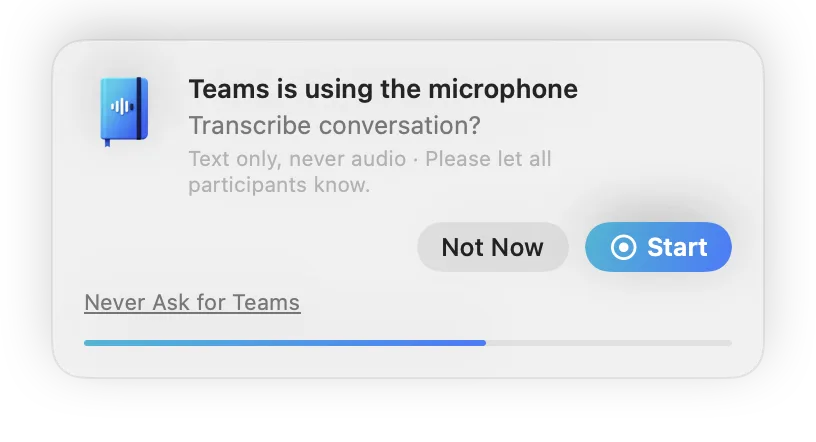
- SayLocal notices your meeting. As soon as another app starts using the microphone – Teams, Zoom, a phone app or a meeting in the browser such as Google Meet – a small window slides in and asks whether to transcribe the conversation.
- You decide. Recording only starts when you click Start. If you do nothing, the window closes after about ten seconds without recording. For apps you never want to be asked about, choose “Never ask”.
- Me and the other side, separately. Your microphone and the sound of the other participants are transcribed separately, so you see who said what. Rename speakers with one click – “Other side” becomes the right name.
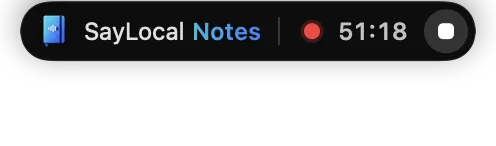
- Only text, never audio. The audio stays briefly in working memory, is turned into text piece by piece and then discarded. When the meeting app releases the microphone, the transcript ends after 30 seconds – or whenever you stop it.
No additional participant appears in the meeting, there is no extra meeting link and nothing to set up per meeting. And while the meeting is running, you can keep dictating with SayLocal as usual.
After the meeting: transcript, tasks, appointments
Every conversation appears in the Conversations window with date, time, duration and app – sorted by day, with a small calendar and full-text search across all transcripts. The transcript is split by speaker and marked with timestamps.
SayLocal also picks out sentences that sound like tasks or dates – “I’ll send you the plan by Thursday”, “let’s meet again on Tuesday at 10” – and lists them under “Found: tasks & appointments”. This happens locally, without AI.
Copy All – straight into Claude or ChatGPT
One big button copies the whole conversation as clean Markdown: title, date, time, duration, participants, the AI summary if there is one, the tasks and appointments found and the full transcript with speakers and timestamps. Paste it into Claude, ChatGPT or an email and continue working with it. You can also save a conversation as a .md or .txt file.

Optional: AI summary with appointments for your calendar
If you switch it on, an AI summarises each conversation: a short summary, topics, decisions, tasks (who, what, by when), appointments and open questions – in the language of the conversation. Appointments that were agreed in the meeting appear as a list; add them to your calendar with one click or all at once.

The AI summary is off by default and has its own checkbox. For the summary, only the text – never the audio – is sent encrypted to our server and to Anthropic (Claude), and it is not stored there. It is an add-on service, currently included in every license (up to 100 summaries a month).
Who it is for
- Freelancers and the self-employed: client calls with every agreement in writing, without taking notes on the side.
- Consulting: workshops and status meetings with decisions and next steps at a glance.
- Sales: discovery calls and follow-ups – the appointments go straight into the calendar.
- Law firms: client meetings that stay on your own computer as text.
- Agencies: briefings and feedback rounds, ready to paste into a ticket or a brief.
- Trades and crafts: calls with customers and suppliers – and in-person conversations on site.
For in-person conversations, start the transcript with one click in the SayLocal menu – then only your microphone is used.
Privacy: what stays on your computer
Stays on your computer
- The speech recognition of every conversation
- Your transcripts, stored as text only – audio is never written to disk
- Speaker names, tasks and appointments found
Only if you switch it on
- The text of a conversation for the AI summary – encrypted, not stored, never audio
SayLocal Notes is off by default; you switch it on in the settings under “Notes”. Before every transcript, SayLocal reminds you to inform all participants. Transcripts are kept until you delete them, or for as long as you set (for example 30 days, 90 days or one year). The rest of SayLocal works as before: your dictation stays on your computer too – more in private dictation app.
This page describes how SayLocal works technically. It is not legal advice. Whether and how you may transcribe a conversation depends on your country, your organisation and the people involved – please inform all participants. Details: privacy policy.
Mac and Windows
- Mac: macOS 14 or later. Separate transcription of “Me” and “Other side” needs macOS 14.2 or later; on macOS 14.0 and 14.1 only the microphone is used.
- Windows: Windows 10 (22H2) or 11, 64-bit.
One license covers two of your own devices – Mac, Windows or a mix.
Pricing
SayLocal Notes is included in every plan – subscription and Lifetime. Prices include VAT. Try everything free for 3 days first, with just your email address and no credit card. Teams and companies: request an offer.
Frequently asked questions
Is it allowed to transcribe a Teams or Zoom meeting?
That depends on your country, your employer and the people in the meeting – please inform all participants before you start, and ask for consent where it is required. SayLocal never stores audio, only text, and reminds you every time you start a transcript. This is not legal advice.
Does an additional participant join my meeting?
No. SayLocal transcribes on your own computer from your microphone and your system audio. No one is added to the call and nothing appears in the participant list. For this reason, please inform the other participants yourself.
Is the audio recorded or stored?
No. The audio is only held briefly in working memory, turned into text and then discarded. Only the transcript is saved, on your computer.
Does it work with Google Meet and other browser meetings?
Yes. SayLocal notices when an app – including your browser – starts using the microphone and asks whether to transcribe. It also works with Teams, Zoom and phone apps, and you can start a transcript manually at any time.
Can it tell who said what?
It separates you (microphone) from the other side (system audio, also with a headset). You can rename speakers afterwards. It does not identify individual voices among several remote participants. On the Mac this needs macOS 14.2 or later.
How do I get the transcript into ChatGPT or Claude?
Click “Copy All”. The whole conversation – header, summary, tasks, appointments and transcript – lands on your clipboard as Markdown, ready to paste.
Is the AI summary included?
Yes, currently. It is an optional add-on service, off by default, and included in subscription, Lifetime and the trial with up to 100 summaries a month. Only text is sent for it, encrypted, and it is not stored.
Which languages are supported?
SayLocal recognises 28 languages; a conversation is transcribed in the language set in SayLocal. The AI summary is written in the language of the conversation.
More about SayLocal
Updated 23 October 2026 · Conto IT, Itzehoe
